


SolidRed 3.3
Add Device
Table of contents
To add a device, click on the three dots next the the asset where you want the device be included. Then, in the sub-menu click Add device.
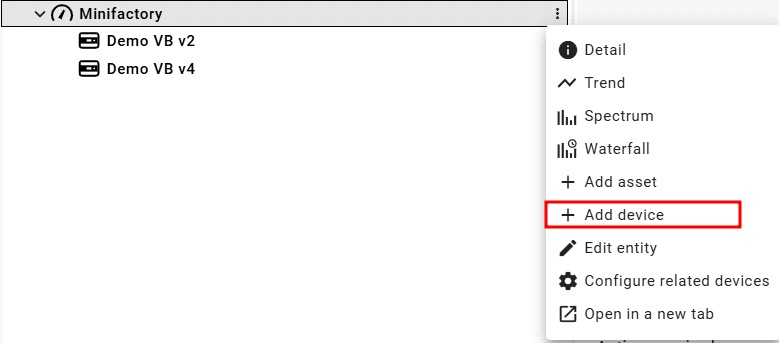
This will make a pop-up form window appear. In order to add a device, fill in the form accordingly. Some additional fields might be required depending on the selected device type.
Mandatory fields:
Device name: The name of the device. This name is used throughout SolidRed as a unique identifier to keep track of the device. Note: Once filled in, the name can not be changed. The "Label" field can be used to show the device under a different name.
devEUI: The device's globally unique Identifier in the IEEE EUI64 address space. The devEUI is provided in a file when purchasing the device.
appEUI: The device's global application ID in IEEE EUI64 address space that uniquely identifies the Join Server that is able to assist in the processing of the Join procedure and the session keys derivation. The appEUI is provided in a file when purchasing the device.
Device type: The type of device to add. The device type can be found in the device's documentation. Clicking the field will open a drop-down list including all available devices. The device type defines how the device is handled in SolidRed.
Key: The device specific encryption key. The key is provided in a file when purchasing the device.
Sensor orientation: (only applicable to the NEON Vibration Sensor) the sensor orientation is based on the position it is installed, related to the asset.
Optional arguments:
Device label: The device label is shown everywhere in SolidRed as a replacement of the device name. When left empty, the device name is shown.
Description: The device description.
To edit a device in the asset tree, select the option Edit entity in the sub-menu of the device. To edit a device from the detail view, click on the pencil icon close to the top-right corner of the dashboard.
Everything except the Device name and the devEUI field can be edited. To be able to update the device, all mandatory fields should be filled. When done, click the Update button in the bottom right corner to edit the device.